Keep a useful take
Remove a prop or distraction that was accidentally left in footage you otherwise want to use.
Remove a visible object from footage you already have. Select the affected range, describe what should disappear, and tell the model which motion and scene details to keep.
Best suited to clearly visible objects. Occlusion, changing shadows, reflections, and fast camera movement can make reconstruction less predictable.
Why use OneThing Video
Remove a prop or distraction that was accidentally left in footage you otherwise want to use.
Select the affected range and describe the removal in a text prompt instead of manually editing individual frames.
Simple, clearly visible objects are easier to reconstruct than objects hidden behind people, complex shadows, or fast motion.
How it works
Start with footage you own or are authorized to edit.
Use the timeline range to keep the edit focused.
Describe what changes and what stays unchanged.
Compare the edited range before accepting the render.
Use cases
Remove a small bag, bottle, box, or other distracting item from your own footage.
Clean up a creator clip when an extra prop remains visible in the selected moment.
Remove an unused surrounding item while keeping the main product, framing, and action.
Prompt examples
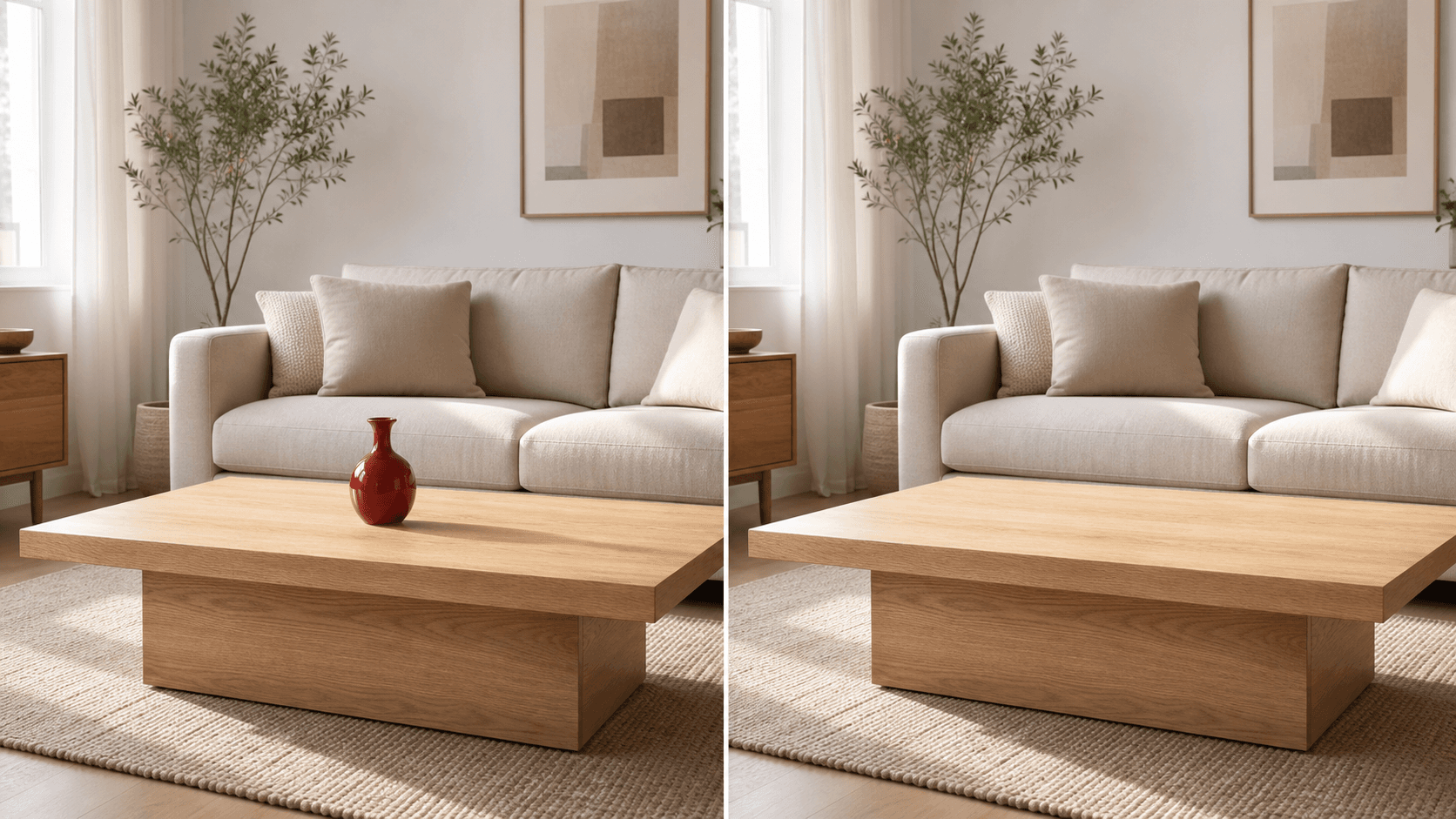
Remove the red vase from the coffee table. Reconstruct the tabletop and keep the room unchanged.
Remove the small bag beside the chair. Fill the area naturally and keep the subject and room unchanged.
Remove the unused prop beside the main product. Preserve the main product, shadows, framing, and timing.
Upload only footage you own or have permission to edit. OneThing Video is made for precise visual changes, not identity swaps, impersonation, or watermark removal.
Describe one clear change and name the details that should remain untouched for a more controlled result.
FAQ
Upload your video, select the range where the object appears, and describe what should disappear and how the surrounding area should look.
You can try when the object remains visible through the selected range. Fast motion, occlusion, changing reflections, and shadows can make the result less predictable.
No. Watermark, logo, and other rights-mark removal is not supported. Use OneThing Video only with footage you own or are authorized to edit.
OneThing Video
Upload your video, select the affected range, and describe the object and the area behind it.